> ## Documentation Index
> Fetch the complete documentation index at: https://docs.daytalog.com/llms.txt
> Use this file to discover all available pages before exploring further.
# Custom Schemas
> Extend your logs with data from other sources
OCF, sound, and proxy files hold a limited amount of fields. They are designed to be minimal, only holding essential data. There might be cases where you want to extend the reports with other data from your other favorite apps.
# Features
You can add fields to the log and clips.
**Log fields** are added to the log object. This is useful if you want to add a custom fields to the shooting day.
**Clip fields** are added to Clips, and extends or overrides properties in the standard [Clip schema](/schemas/daytalog/log/clips).
You can optionally import data from a CSV file. Toggle `Import from file` on to list your schema under other imports.
When `Import from file` is enabled, all fields must have a `column` property. The column should match the header column in your CSV file.
# Defining a Schema
Let's start by defining the schema inside the project settings. Choose a name for your schema that you can use to select it.
## Sync Method
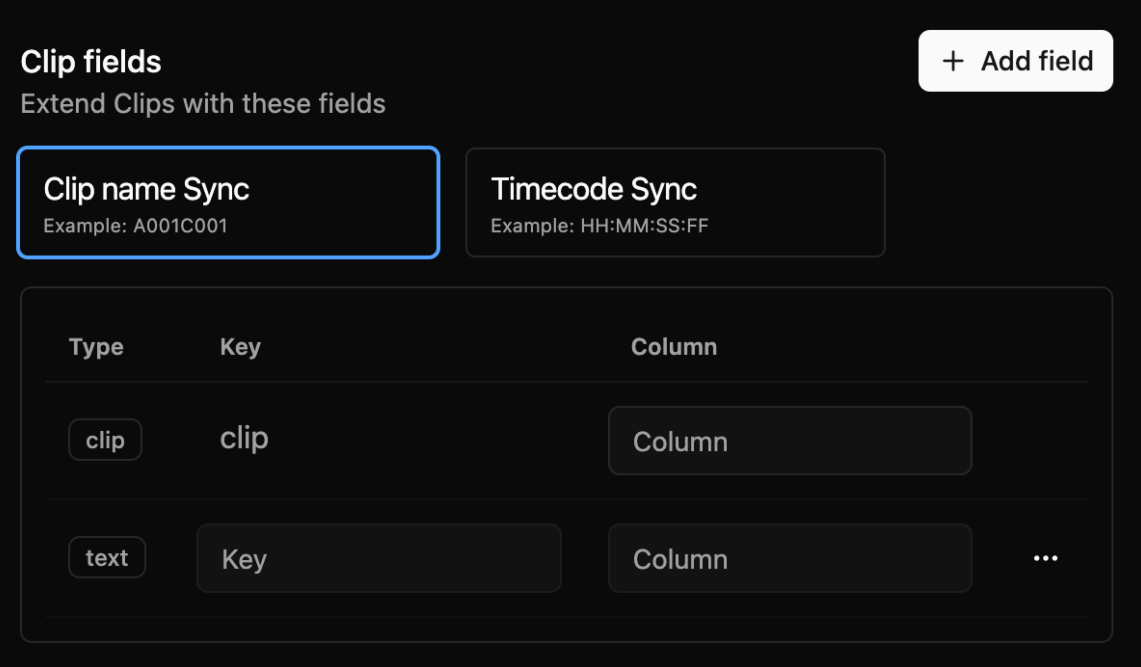 To be able to match our schema with clips, we need to define the sync method.
You can choose to match the clips by clip name or timecode.
When syncing by clip name, `clip` is required. The value need to be identical to the OCF clip name.
When syncing by timecode, `tc_start` and `tc_end` are required. The values need to be within the timecode range of the OCF clip.
Choose clip as the sync method. The `clip` type needs to be in the schema. All clips in your `.dayta` file need to be identical to the OCF clip ID.
```yaml config.yaml theme={null}
custom_schemas:
- id: MySchema
active: true
order: 1
sync: clip # sync method
clip_fields:
- type: clip # Required
```
```yaml .dayta theme={null}
ocf:
clips:
- clip: A_0001C001
custom:
- schema: MySchema
clips:
- clip: A_0001C001 # value must be identical to OCF clip
```
Choose tc as the sync method. The `tc_start` and `tc_end` types need to be in the schema. OCF clips also need to have TC to match with.
```yaml config.yaml theme={null}
custom_schemas:
- id: MySchema
active: true
order: 1
sync: tc # sync method
clip_fields:
- type: tc_start # Required
- type: tc_end # Required
```
```yaml .dayta theme={null}
ocf:
clips:
- clip: A_0001C001
- tc_start: 15:14:02:22
- tc_end: 15:14:03:18
custom:
- schema: MySchema
clips:
- tc_start: 15:14:02:22
- tc_end: 15:14:03:18
```
## Field Types
You can choose from a selection of data types to define your fields. Basic types solves most use cases when you want to extend with new properties.
Metadata types are used when you want to override the property in the standard schema.
Keys are used to access the value in the log and clips.
To be able to match our schema with clips, we need to define the sync method.
You can choose to match the clips by clip name or timecode.
When syncing by clip name, `clip` is required. The value need to be identical to the OCF clip name.
When syncing by timecode, `tc_start` and `tc_end` are required. The values need to be within the timecode range of the OCF clip.
Choose clip as the sync method. The `clip` type needs to be in the schema. All clips in your `.dayta` file need to be identical to the OCF clip ID.
```yaml config.yaml theme={null}
custom_schemas:
- id: MySchema
active: true
order: 1
sync: clip # sync method
clip_fields:
- type: clip # Required
```
```yaml .dayta theme={null}
ocf:
clips:
- clip: A_0001C001
custom:
- schema: MySchema
clips:
- clip: A_0001C001 # value must be identical to OCF clip
```
Choose tc as the sync method. The `tc_start` and `tc_end` types need to be in the schema. OCF clips also need to have TC to match with.
```yaml config.yaml theme={null}
custom_schemas:
- id: MySchema
active: true
order: 1
sync: tc # sync method
clip_fields:
- type: tc_start # Required
- type: tc_end # Required
```
```yaml .dayta theme={null}
ocf:
clips:
- clip: A_0001C001
- tc_start: 15:14:02:22
- tc_end: 15:14:03:18
custom:
- schema: MySchema
clips:
- tc_start: 15:14:02:22
- tc_end: 15:14:03:18
```
## Field Types
You can choose from a selection of data types to define your fields. Basic types solves most use cases when you want to extend with new properties.
Metadata types are used when you want to override the property in the standard schema.
Keys are used to access the value in the log and clips.
For the basic types you will define the key by setting `key_name`, metadata types has the type as the key.
```yaml config.yaml theme={null}
custom_schemas:
- id: MySchema
active: true
order: 1
sync: clip
clip_fields:
- type: clip
- type: text
key_name: location ## Choose a key to access value with
```
```yaml .dayta theme={null}
custom:
- schema: MySchema
clips:
- clip: A_0001C001
location: street ## Access the value using the key
- clip: A_0001C002
location: apartment
```
Example of how to access the value using the key:
```javascript theme={null}
{log.clips.map(clip => (
{clip.location}
))}
```
### Types
It's text. Nothing more, nothing less.
Name of the key
CSV column header for parsing CSV
A list/array of text.
*Example:*
`["applebox", "boom", "clapperboard"]`
Name of the key
CSV column header for parsing CSV
Select delimiter for parsing `",", ";", "|", ":", "="`
A list of nested lists.
*Example:*
```javascript theme={null}
[
['Johnny', 'Bravo', 'Gaffer'],
['Jane', 'Doe', 'Video Assist']
]
```
Name of the key
CSV column header for parsing CSV
Select primary delimiter for parsing `",", ";", "|", ":", "="`
Select secondary (nested) delimiter for parsing `",", ";", "|", ":", "="`
Key-value pairs inside an object.
*Example:*
```javascript theme={null}
{
Location: 'Studio 1',
UserInfo1: 'bananas, oat milk, 12 eggs, avocados (ripe, but not too ripe)'
}
```
Name of the key
CSV column header for parsing CSV
Select primary delimiter for parsing `",", ";", "|", ":", "="`
Select secondary (nested) delimiter for parsing `",", ";", "|", ":", "="`
A list of key-value objects.
*Example:*
```javascript theme={null}
[
{
tc: '25:25:25.25',
urgency: '0',
issue: 'Operator fell asleep. Shot turned into 20 minutes of clouds'
},
{
tc: '01:23:45.67',
urgency: '5',
issue: 'Camera overheated'
}
]
```
Name of the key
CSV column header for parsing CSV
List of nested fields
Select primary delimiter for parsing `",", ";", "|", ":", "="`
Select secondary (nested) delimiter for parsing `",", ";", "|", ":", "="`
The value must match the type format. Use with caution.
| type/key | Format | Example |
| :------------ | :------- | :------------ |
| clip | string | "A001C001" |
| tc\_start | timecode | "00:00:01:00" |
| tc\_end | timecode | "00:00:10:00" |
| duration | timecode | "00:00:09:00" |
| camera\_model | string | "ARRI Alexa" |
| reel | string | "A001" |
| fps | number | 24 |
| sensor\_fps | number | 24 |
| lens | string | "50mm" |
| shutter | number | 180 |
| resolution | string | "1920x1080" |
| codec | string | "ProRes 4444" |
| gamma | string | "Log-C" |
| ei | number | 800 |
| wb | number | 5600 |
| tint | string | "-1" |
| lut | string | "bg-tint" |
## Priority
If multiple schemas have the same key, the priority will determine which value is used.
A higher number means higher priority.
The priority is set by the `order` property in the schema.
```yaml config.yaml theme={null}
custom_schemas:
- id: MySchema
active: true
order: 1
```