> ## Documentation Index
> Fetch the complete documentation index at: https://docs.daytalog.com/llms.txt
> Use this file to discover all available pages before exploring further.
# Distribution and Export
> Send or export reports in three clicks - Use presets
Presets can be created in project settings.
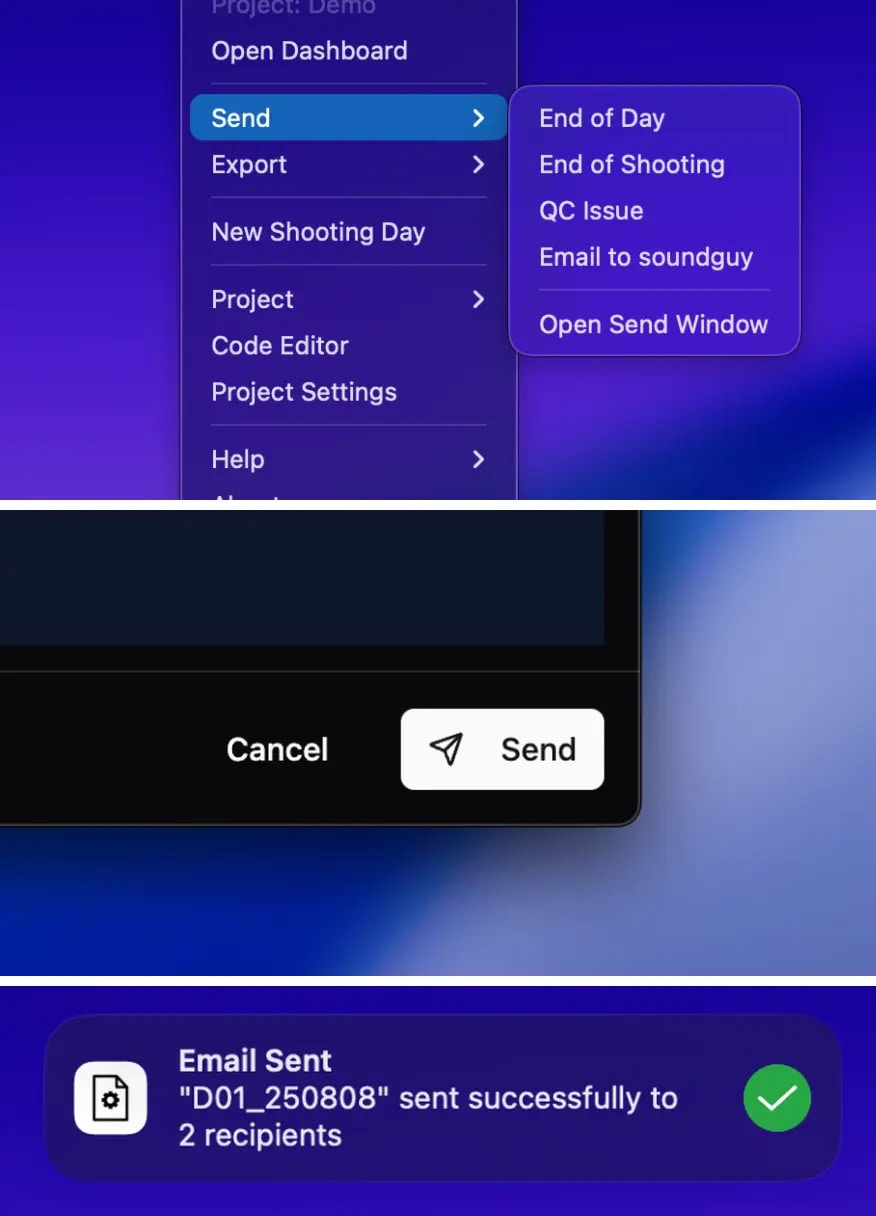
## Send Emails
Send email reports in three clicks
 ## Export PDF
Export PDFs in three clicks
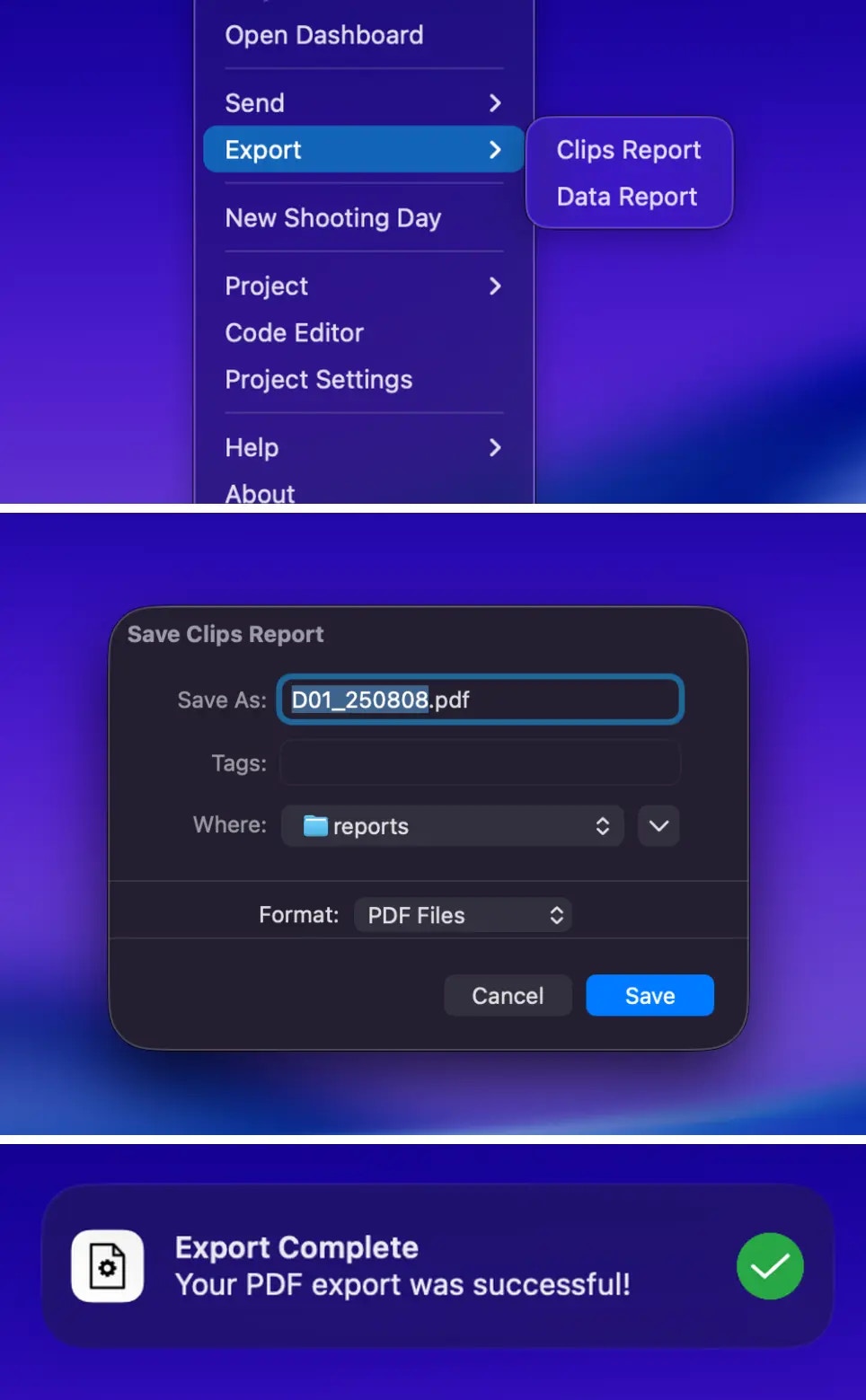
## Export PDF
Export PDFs in three clicks
 Presets can be created in project settings.
## Notes
Clicking a preset in the menu bar will automatically select the latest log. To select other logs, open the dashboard, select the desired logs, then hit the send or export button.
Presets only work if you have logs in your project.
Presets can be created in project settings.
## Notes
Clicking a preset in the menu bar will automatically select the latest log. To select other logs, open the dashboard, select the desired logs, then hit the send or export button.
Presets only work if you have logs in your project.